



Before you can explore the powerful capabilities of Microsoft Fabric, it must be enabled for your organization. If you’re not an administrator, you might need to coordinate with your IT department to get Fabric up and running.
Prerequisites for Enabling Fabric
To enable Fabric, you’ll need one of the following admin roles:
- Fabric admin
- Power Platform admin
- Microsoft 365 admin
Fabric can be enabled either at the tenant level (for the entire organization) or the capacity level (for specific groups of users). If you don’t have access to Fabric yet, reach out to your Fabric administrator (formerly the Power BI administrator) to inquire about its availability.
Enabling Microsoft Fabric
If you have the necessary admin privileges, follow these steps:
- Access the Admin center from the Settings menu in the upper right corner of the Power BI service.
- Enable Fabric in the Tenant settings.
- Choose to make Fabric available to the entire organization or to specific groups of users based on their Microsoft 365 or Microsoft Entra security groups.
- You can also delegate the ability to enable Fabric (at the capacity level) to other users.
Note: If your organization isn’t using Fabric or Power BI currently, you can sign up for a free Fabric trial to explore the different workloads.


Creating Fabric-Enabled Workspaces
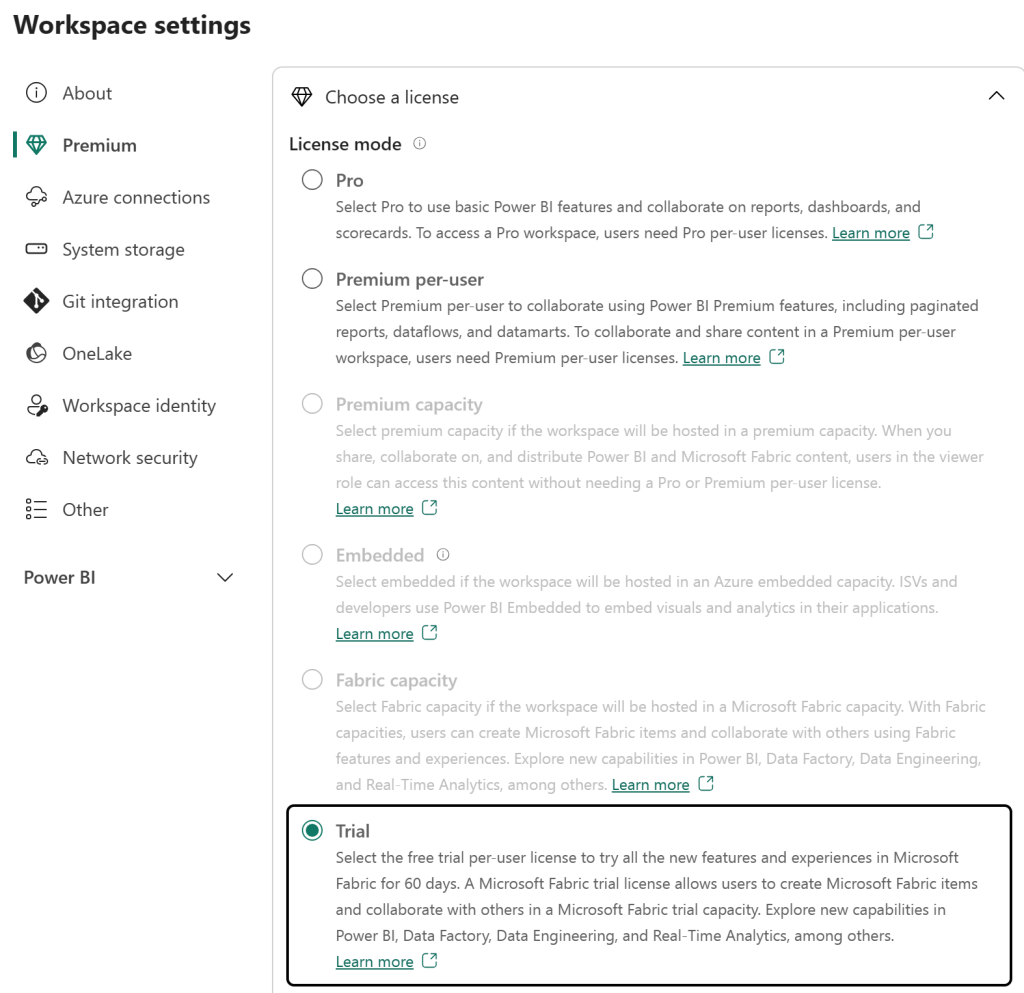
All Fabric items (lakehouses, notebooks, pipelines, etc.) are stored in OneLake and accessed through Fabric workspaces. To enable Fabric within a workspace, select either Trial or Fabric Capacity license mode.
Note: For further information on enabling Premium capacity in a workspace, see Fabric capacity settings.

Creating Items in Fabric
Once you have a Fabric-enabled workspace, you can start creating items using the Create menu in the upper left corner of the Power BI service.


Exploring Fabric Workloads
Fabric workloads encompass the various capabilities within the platform. You can switch between workloads using the workload switcher in the bottom left corner of the navigation pane.
You might notice similarities between Fabric workloads and other Microsoft data offerings. Fabric is built on Power BI and Azure Data Lake Storage and integrates capabilities from Azure Synapse Analytics, Azure Data Factory, Azure Databricks, and Azure Machine Learning. However, Fabric’s uniqueness lies in its unified SaaS experience, eliminating the need for direct access to Azure resources.


Key Takeaway:
Microsoft Fabric simplifies the onboarding process, making it easy for organizations to leverage its powerful capabilities. Once enabled, users can create Fabric-enabled workspaces, explore various workloads, and start harnessing the power of integrated data analytics.
This blog post is based on information and concepts derived from the Microsoft Learn module titled “Introduction to end-to-end analytics using Microsoft Fabric.” The original content can be found here:
https://learn.microsoft.com/en-us/training/modules/introduction-end-analytics-use-microsoft-fabric/
Deixe um comentário Cancelar resposta